Configuring the Built-In Barcode Scanner on Zebra Terminals for Weaver WMS
Follow the steps below to configure the built-in barcode scanner on Zebra terminals:
1. Open the DataWedge App
Launch the DataWedge app installed on your Zebra device.
2. Select the Default Profile
From the menu, choose the option “Profile0 (default)”.
3. Enable "Intent Output"
Scroll down and locate the “Intent output” section, then:
- Enable the “Enable” option.
- Ensure the “output via internet” option is turned on.

Alt: Screenshot showing the Intent Output settings in the DataWedge app on a Zebra terminal.
4. Configure “Intent Action”
- Enter the address
com.wms.ACTIONin the “Intent action” field. - In the “Intent delivery” tab, select the option “Broadcast intent”.
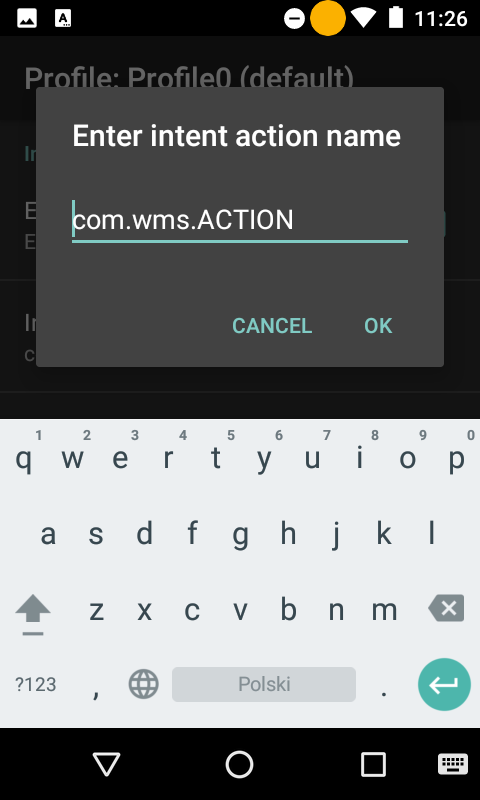
Alt: Screenshot showing the Intent Action configuration in the DataWedge app on a Zebra terminal.
5. Start Scanning
After completing the configuration, the scanner is ready to use. You can now scan barcodes seamlessly in the Weaver WMS application.