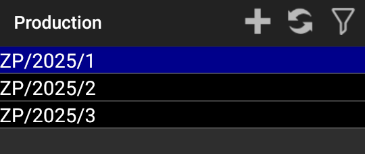
Realizations of the Production Process
1. Production module in the Weaver WMS warehouse system
The production module in the Weaver WMS warehouse system supports the management of in-warehouse production processes. Its main purpose is to track the stages of production, control resources, raw materials, and goods necessary for manufacturing, and monitor progress. It also enables synchronization with other warehouse processes, such as order picking, goods storage, and shipping. As a result, the production module increases operational efficiency, minimizes errors, and simplifies the supervision of the entire production cycle.
2. Defining workstation groups
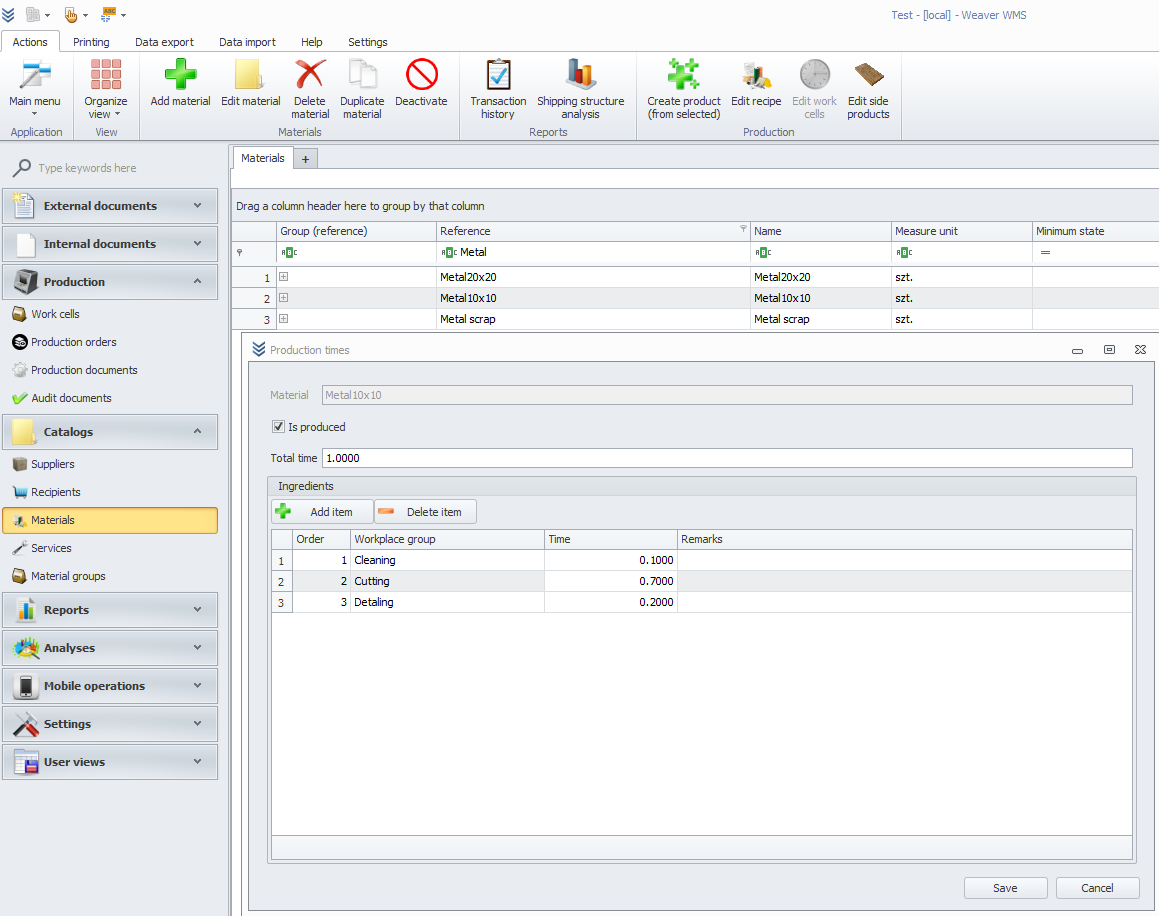
In this tab, you can define your production workstations, which can help in organizing your production setup within the system.

In the Materials tab, located in the top navigation bar, you can now edit position groups for the selected material.
The screenshot below illustrates this functionality.
3. Production orders
Production orders can cover processes such as assembling a finished product from multiple components or transforming one large raw material into several smaller elements. These orders may consist of multiple stages carried out at different production workstations. Ultimately, they result in the creation of a single final material and possibly by-products.
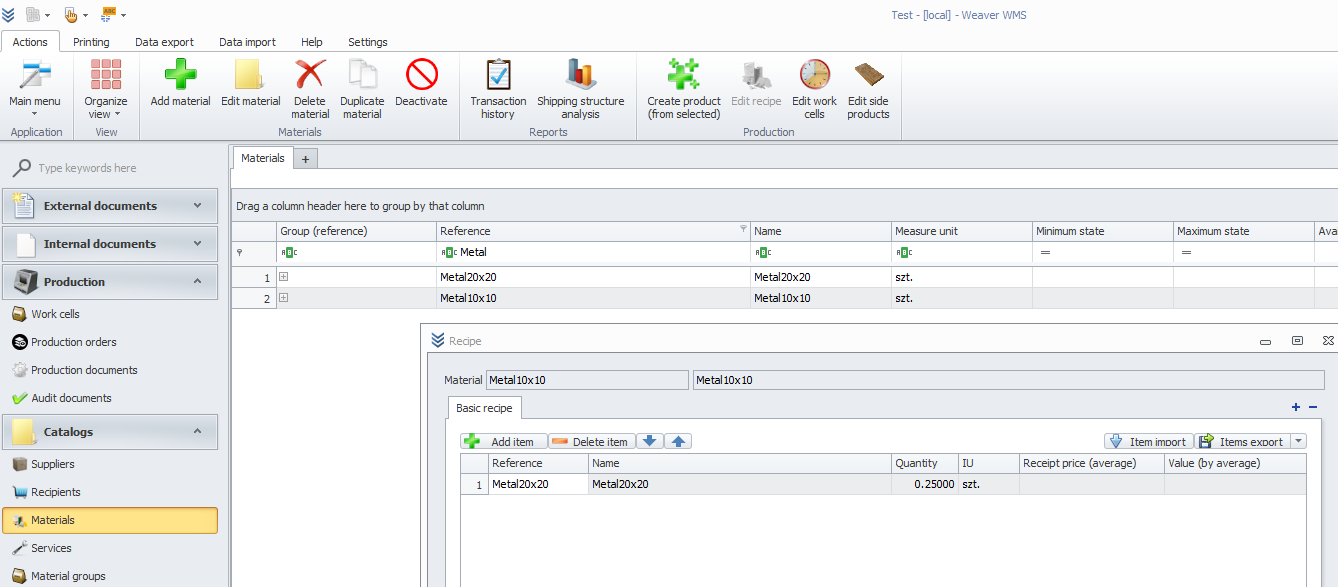
3a) Editing a material recipe
In the Materials tab, you can edit the recipe for a given material. For instance, in the example shown below, to produce “Metal10x10”, you need 0.25 of the “Metal20x20” material.
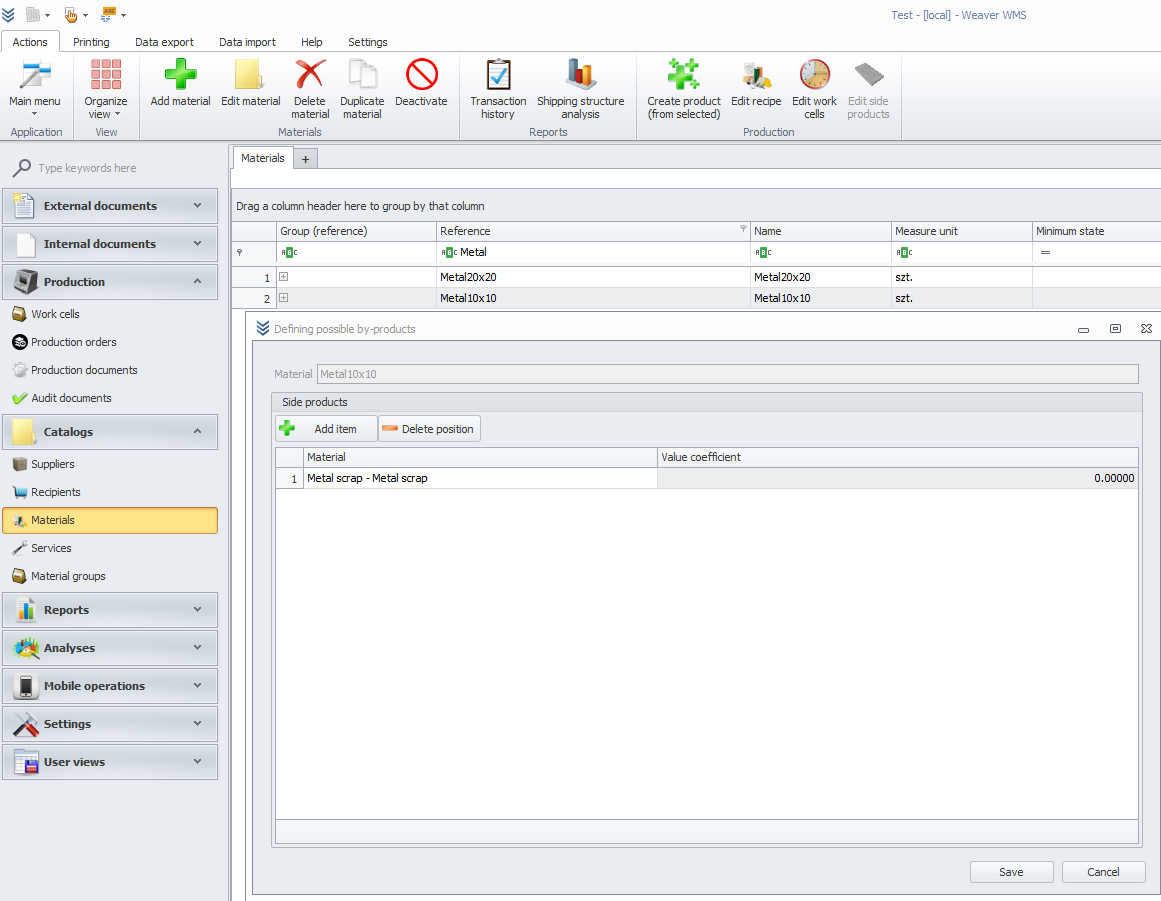
If needed, you can also add any by-products that result from the production process in the Materials tab.
3b) Creating a production order
To create a production order, go to the Production Orders tab and click Add, then select the recipient and the material to be produced along with the planned quantity.
Once the order is created, you can verify the quantity and types of raw materials needed and check the processes that will be performed to obtain the final product.
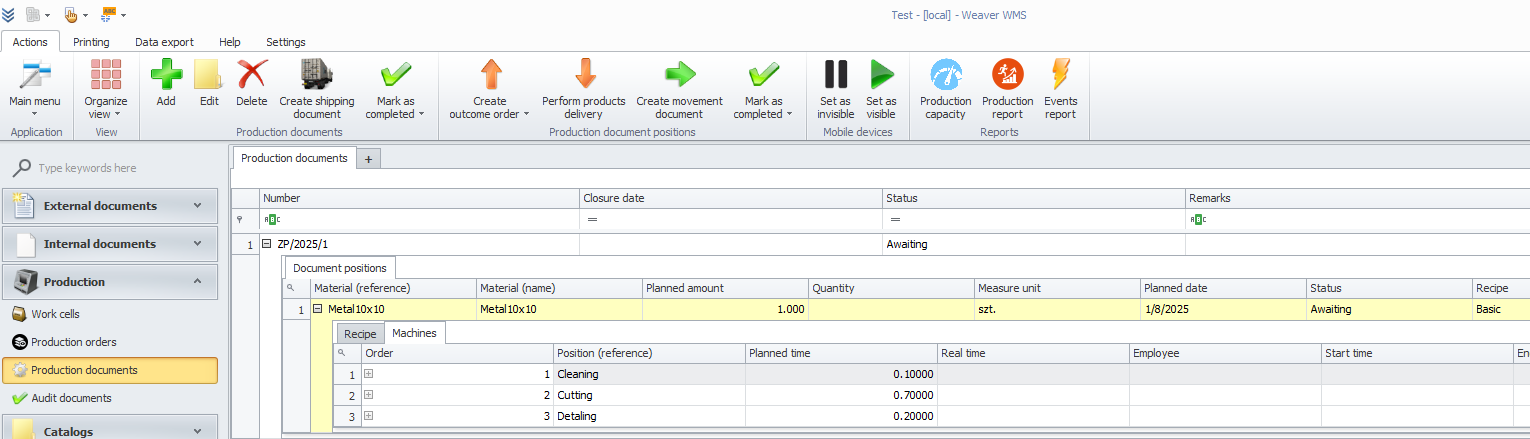
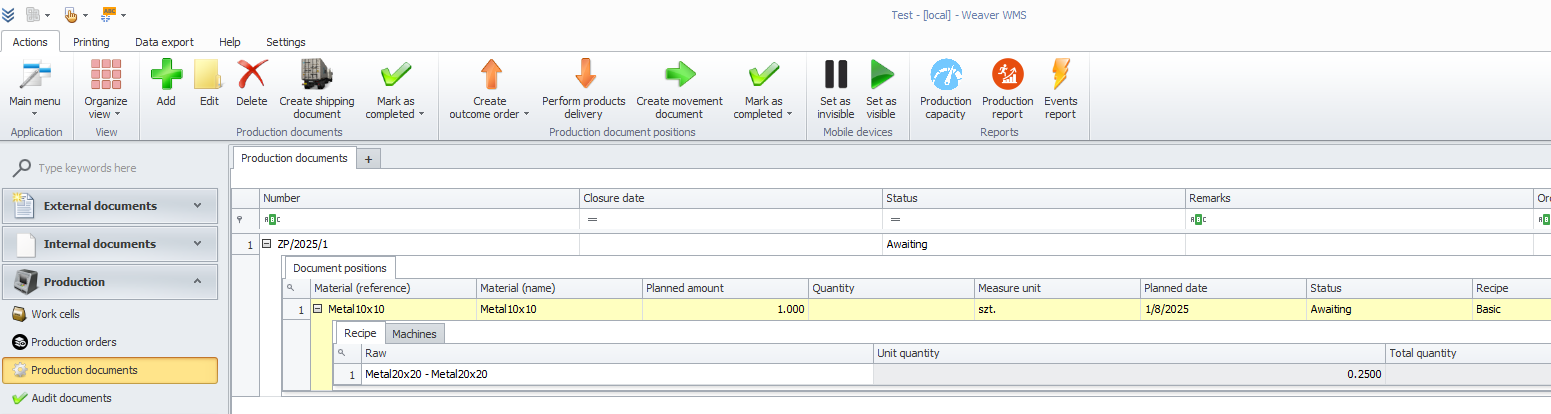
3c) Production order on a mobile device
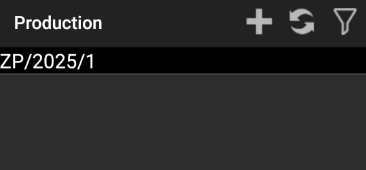
- Select the production order:
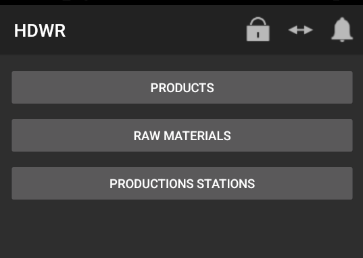
- Tap on Raw Materials:
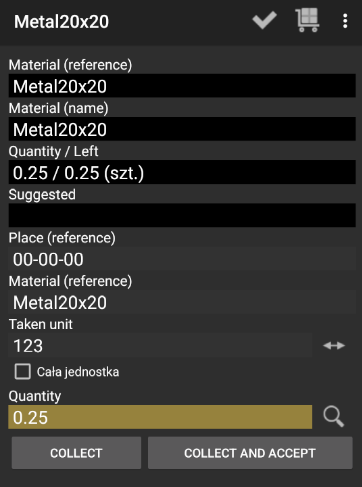
- Fill in the location, material code, unit, and quantity, then tap Retrieve and confirm:
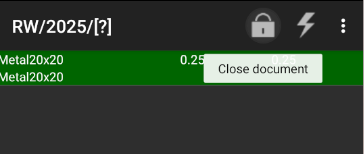
The internal issue document should then highlight in green, and you can confirm by tapping Close document.
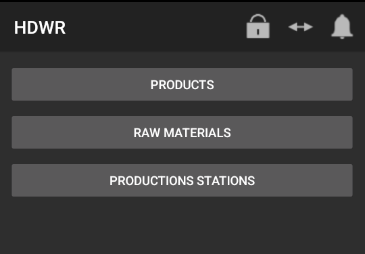
- Next, select Products:
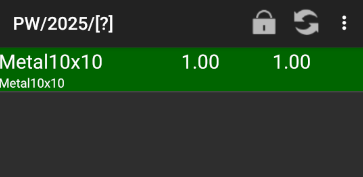
- Add the PW position and close the document:
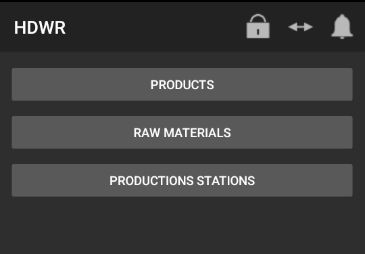
- Finally, select Production workstations:
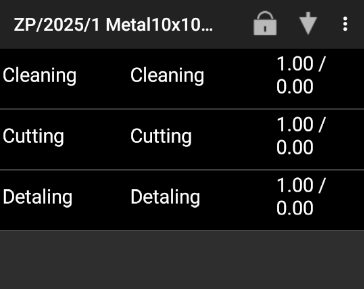
Here, you can see all the steps of the production order:
4. Production requests
Production requests are a key element in planning and carrying out the production process, where multiple production orders combine to create a single final product. This can be visualized using a production tree, where each production order is responsible for producing subcomponents that, ultimately, form the finished product.
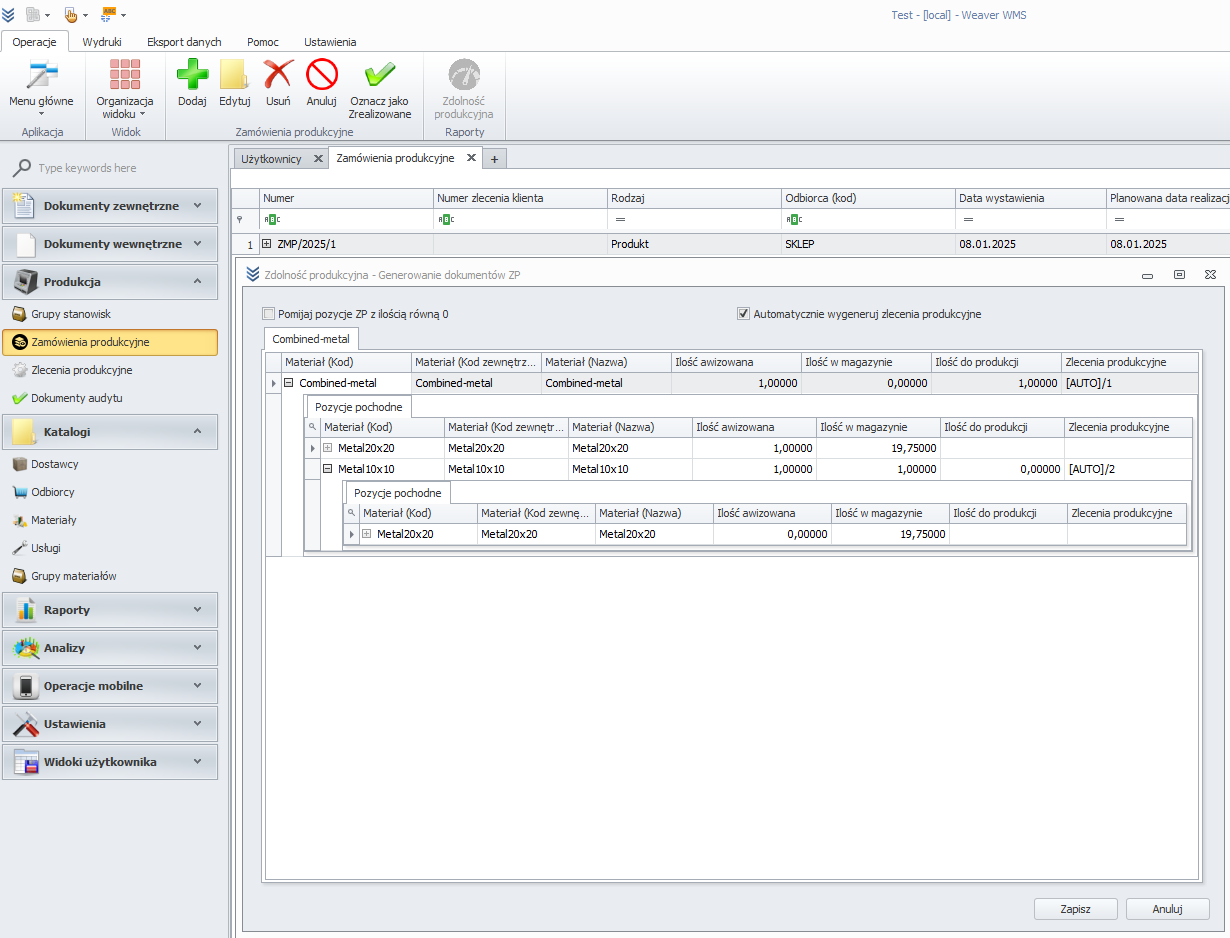
Click Production Capacity to select the checkbox and create all required production orders:
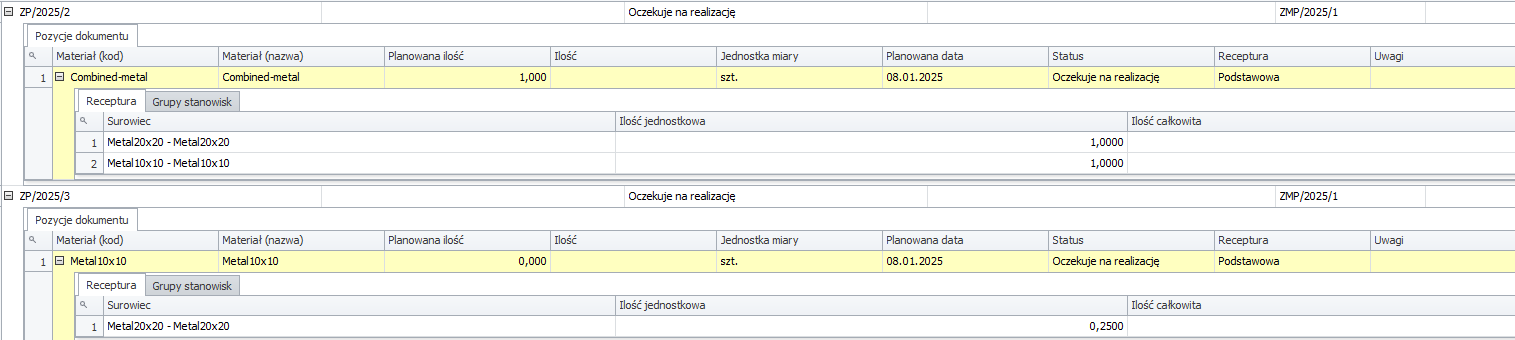
In order for these orders to be visible in the mobile application, assign them a status that is visible to mobile devices.