Realizations of the Multipicking Process
Multipicking is a method that can significantly streamline the order picking process. Depending on the goods’ dimensions, it allows collecting items for dozens of orders in a single picking route.
Multipicking Configuration
Containers
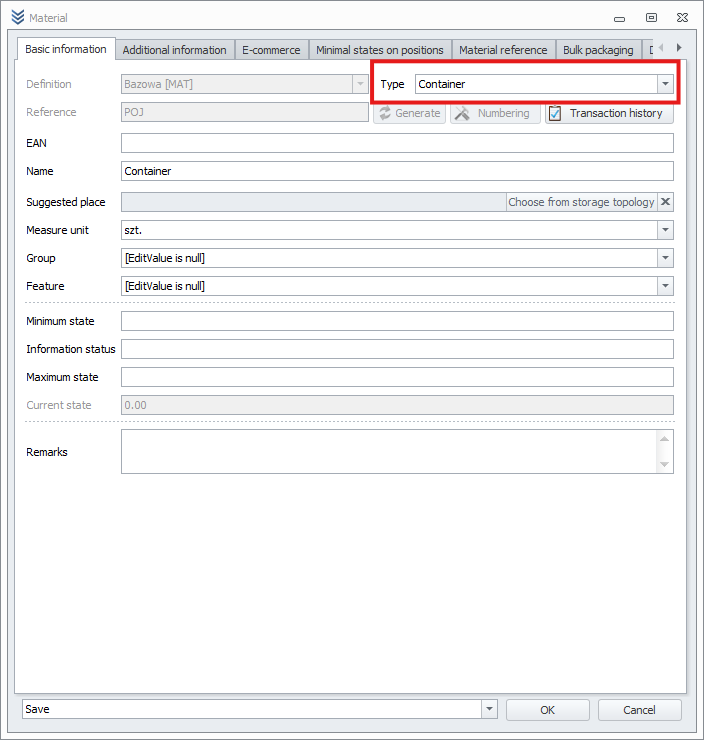
In the material catalog, add at least one new product of type “Container.” This product represents the containers placed on the cart, so it must have defined dimensions.
Order Picking Carts
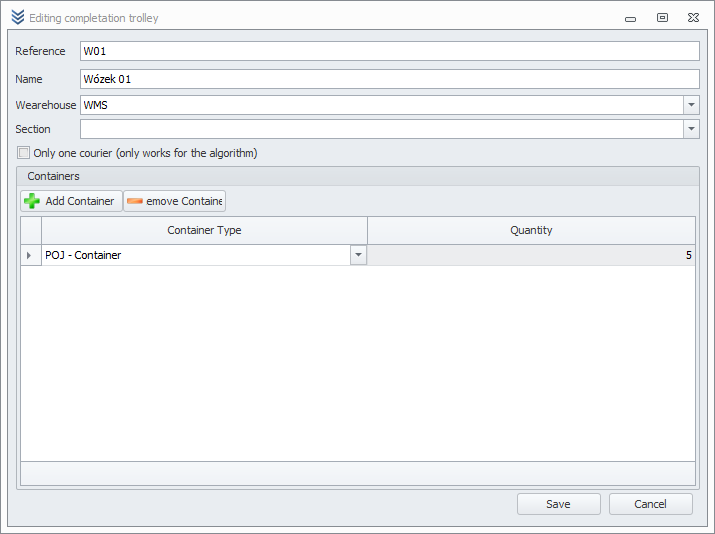
Here, you add carts corresponding to the physical carts in your warehouse. A cart can only have one container type in any quantity.
To add picking carts, go to Settings > Multipicking > Order Picking Carts. Then click Add and fill in the required fields. After creating a cart, remember to activate it from the top menu.
Packing Stations
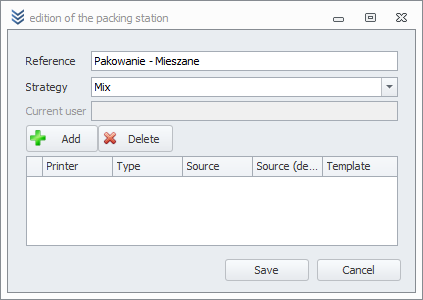
To add packing stations, go to Settings > Multipicking > Packing Stations. Then select Add, fill in the station code, and choose a packing strategy.
Each station can be assigned to only one user at a time, and the packing strategy can be changed only at the desktop station.
Configuring Picking Settings for a User/Role
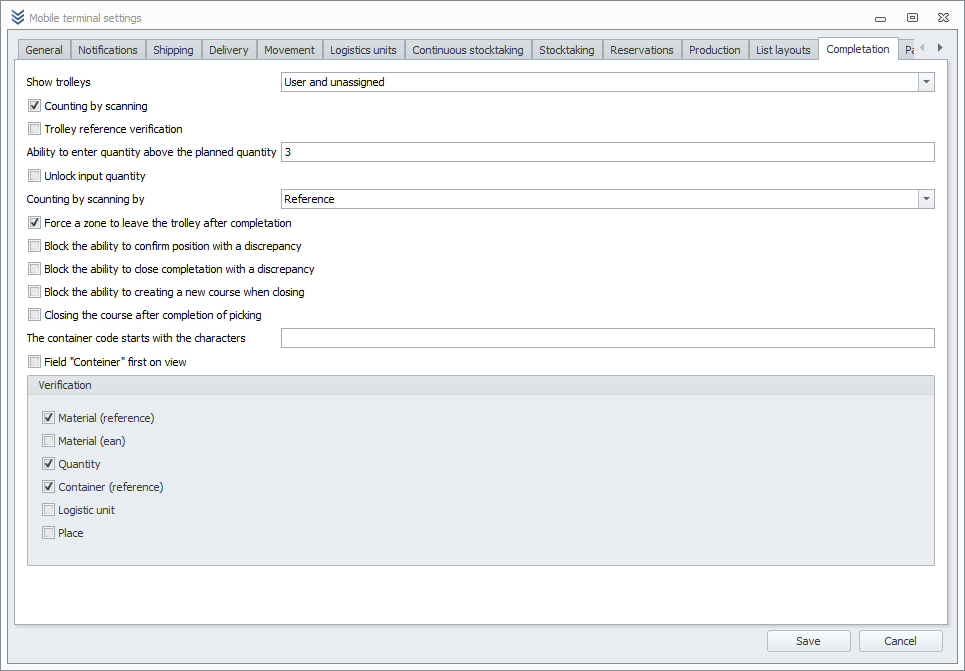
For each user or role, you can define different picking settings. These include which carts are displayed to the user, scanning-based counting, and which fields are verified during picking.
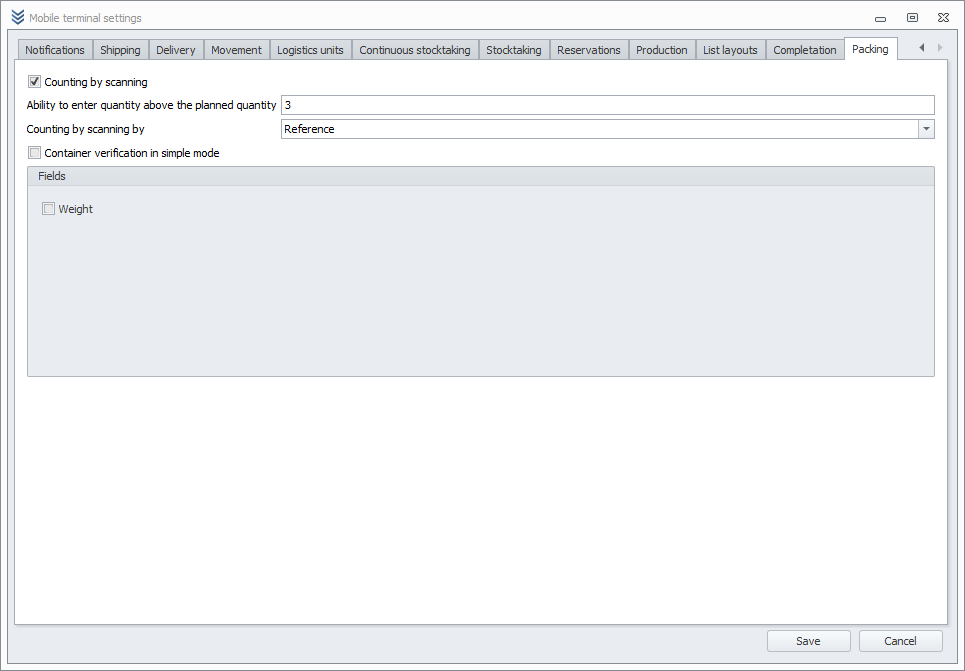
Configuring Packing Settings for a User/Role
You can also tailor the packing process to your needs. Available options include scanning-based counting, printing shipping labels, and additional verification during simple-mode packing.
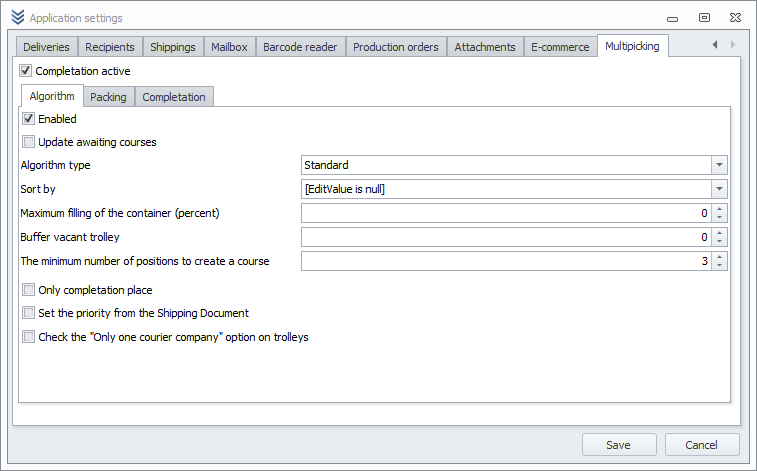
Enabling Multipicking and the Algorithm
To do this, go to Settings > Application Settings > Multipicking.
Here you will find the active picking option that activates the multipicking process in the system.
To enable the algorithm, select Enabled under Algorithm.
Additional algorithm settings include:
- Maximum container fill – the maximum percentage of a container’s volume that can be filled,
- Minimum number of items to create a route – the minimum number of items assigned to a single route.
Additional Configuration for Proper Multipicking Operation
- Provide dimensions (length, width, height) for all materials in the material catalog,
- Complete the picking order for all storage locations,
- Specify the warehouse for users/roles – users can set it themselves on the terminals, or it can be defined in the first tab of the mobile terminal settings (in the users/roles view).
Creating a Picking
WZ Documents
Send WZ document items for picking by making them visible on the terminals.
You can do this manually (using Set as Visible) or via cyclical tasks.

After that, items from visible documents will appear in Mobile Operations > Issue Pickings > Items.
Running the Algorithm
There are three ways to run the algorithm:
- Cyclical tasks – configure the “Multipicking – run algorithm” event so the system periodically tries to create a route for each free, active cart,
- Unloading a cart – when the packer removes the last container from the cart, the algorithm automatically starts and assigns a new route,
- Manual start – if a cart is not assigned to a route, go to the cart view, select the cart, and click Activate.
When launched, the algorithm automatically creates containers and picking routes for the items.
Performing Multipicking
On the mobile device, go to Picking and select the desired picking cart. The system will prompt you to enter or scan the cart code.
After confirming the cart, the first item to be collected is displayed.
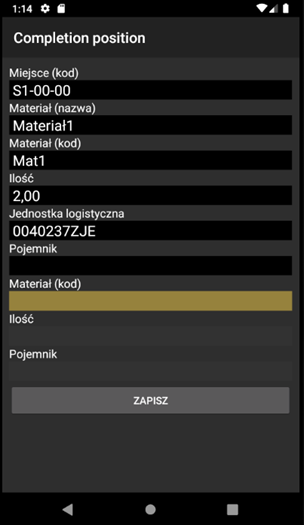
If the Container field is not automatically filled, you must scan or enter the container code from the cart. If it is filled, you must scan or enter its code to confirm.
After each collected item, the system shows the next item according to the optimal route.
When all items are collected, a summary screen appears, allowing you to close the picking.
Closing the picking takes you back to the list of available routes.
Performing Packing
To pack items, go to Packing on the mobile device, select a station, then scan or enter the codes of the containers collected during picking.
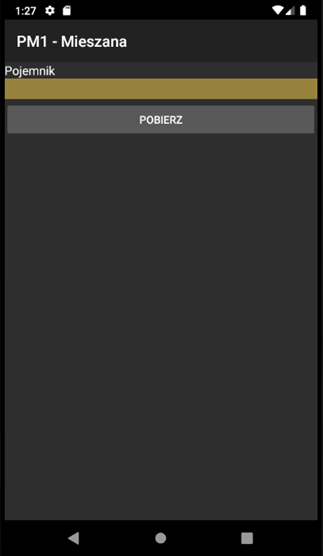
After clicking Retrieve, you move directly to the item packing step.
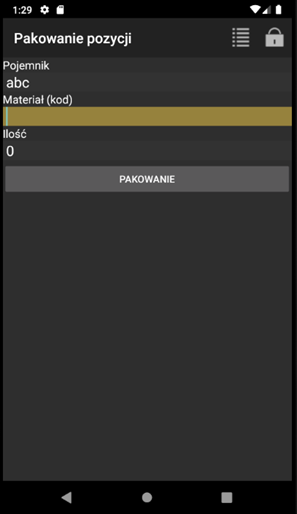
If the order is split across multiple containers, the system requires all necessary containers.
If the user has not collected all required containers for the order, the system will prompt them to place the container in a holding area.
Once the entire document is packed, you receive a notification, and (if enabled) a shipping label is printed.
During packing, the system automatically closes the WZ documents being packed. After unloading the cart, it updates the cart’s status and runs the algorithm to create the next route.